> ## Documentation Index
> Fetch the complete documentation index at: https://docs.enhanza.com/llms.txt
> Use this file to discover all available pages before exploring further.
# Google Looker Studio
> Google Looker Studio is an online, powerful and easy to use tool for creating professional looking dashboards and reports. Easily connect it to your data sources with Enhanza.
Before you begin, [create a workspace](https://app.enhanza.com/register) and complete the onboarding.
## Get started
1. Open [Looker Studio](https://lookerstudio.google.com/).
2. Create a new report or open an existing report.
## Connect to Fortnox
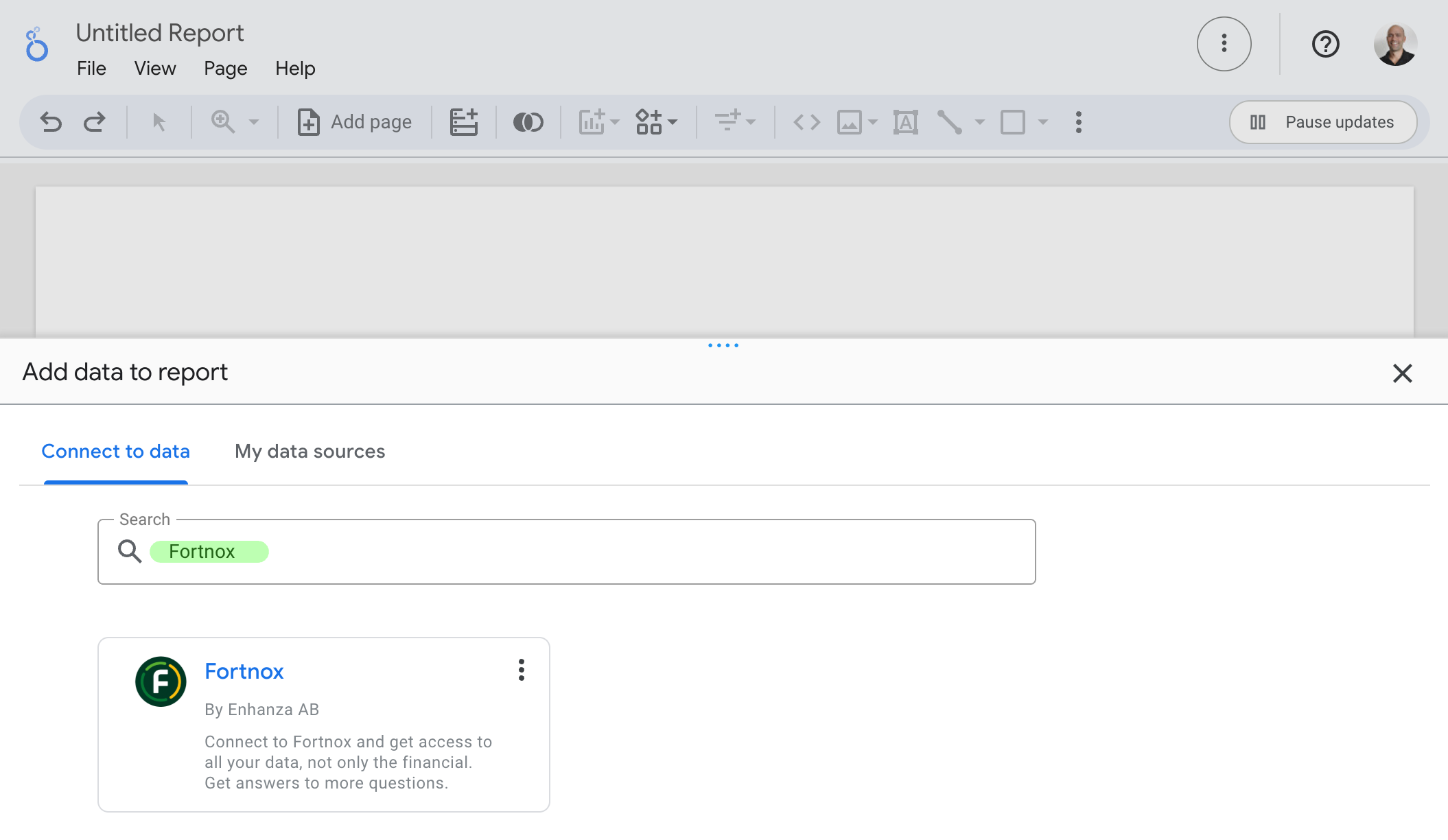
1. Create a new data source from withing your report.
2. Search for and select `Fortnox`.
 3. Select one of your Enhanza workspaces and which Fortnox data you want to use.
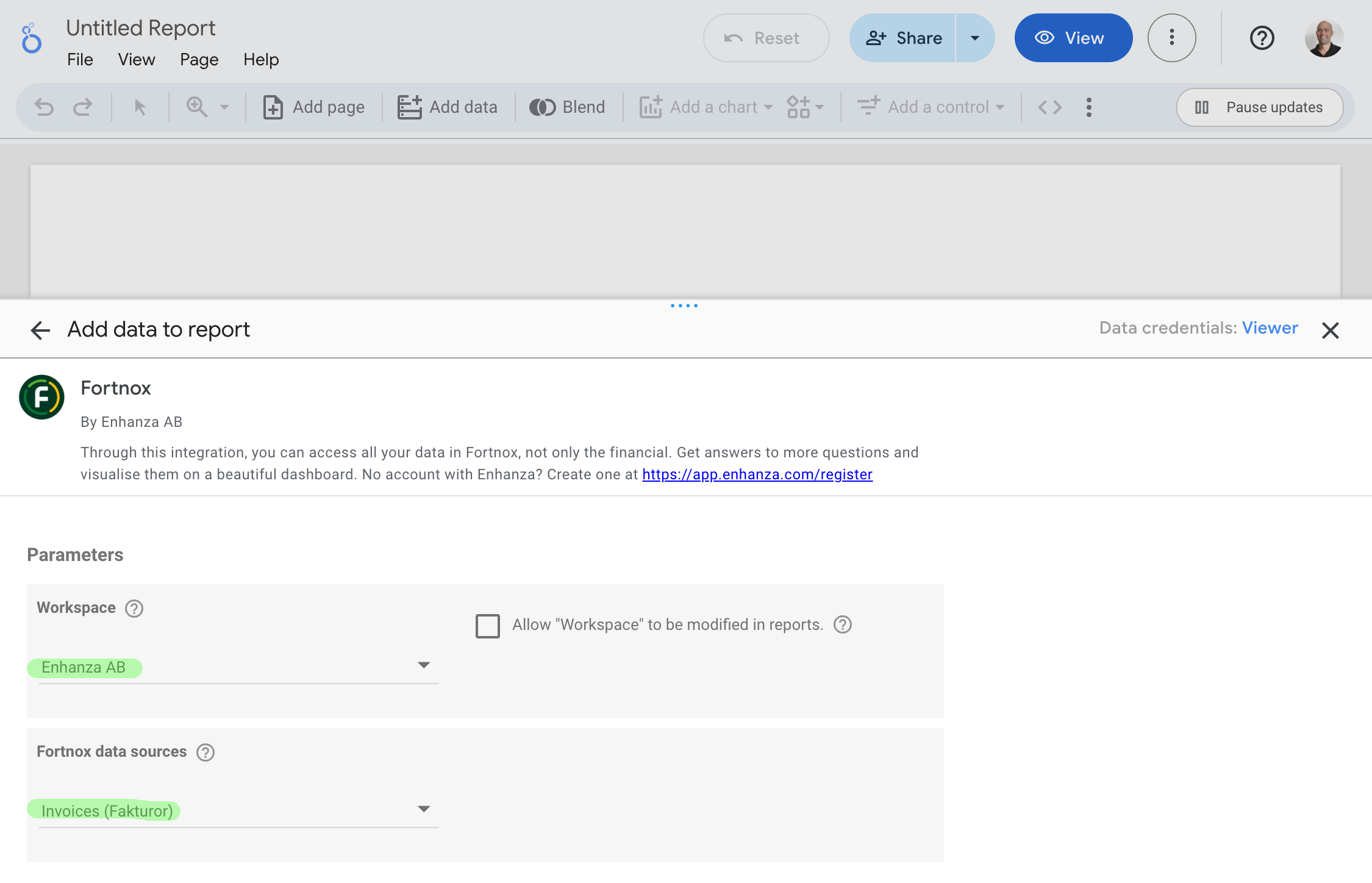 4. Click `Add`.
## Connect to other data sources
1. Create a new data source from withing your report.
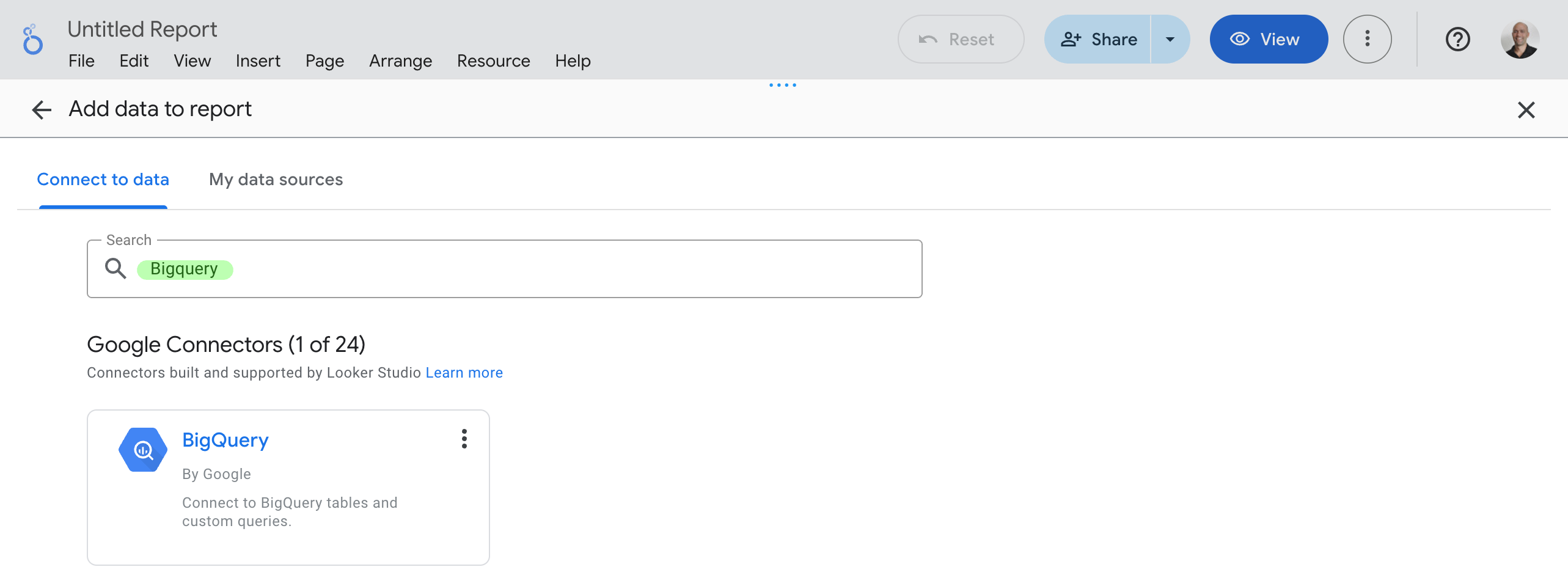
2. Search for and select `Bigquery`.
4. Click `Add`.
## Connect to other data sources
1. Create a new data source from withing your report.
2. Search for and select `Bigquery`.
 3. Select `MY PROJECTS` > `Enhanza` and choose data to connect to.
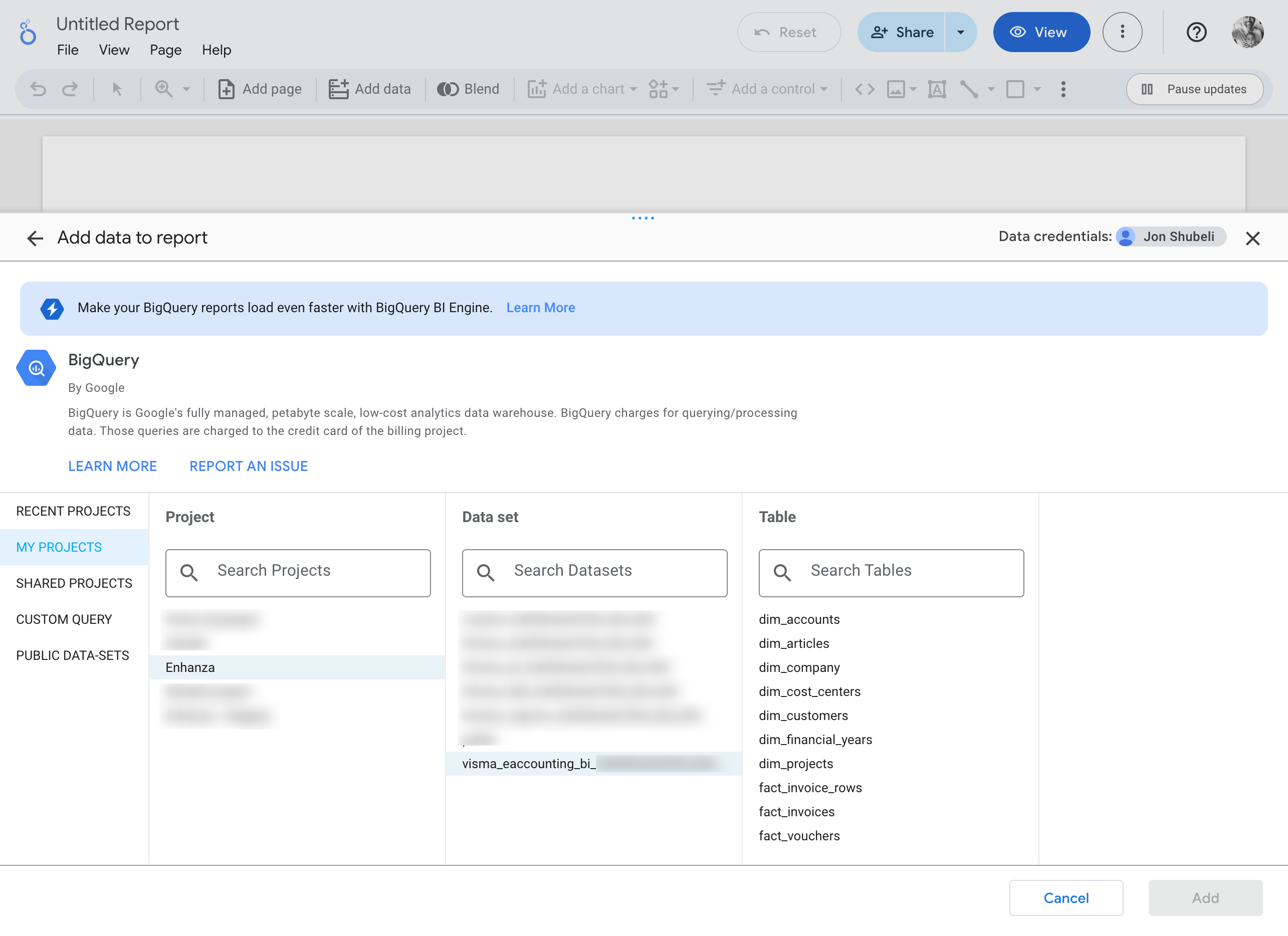 \
Alternatively, you can write a custom query to access the exact data you need.
\
Alternatively, you can write a custom query to access the exact data you need.
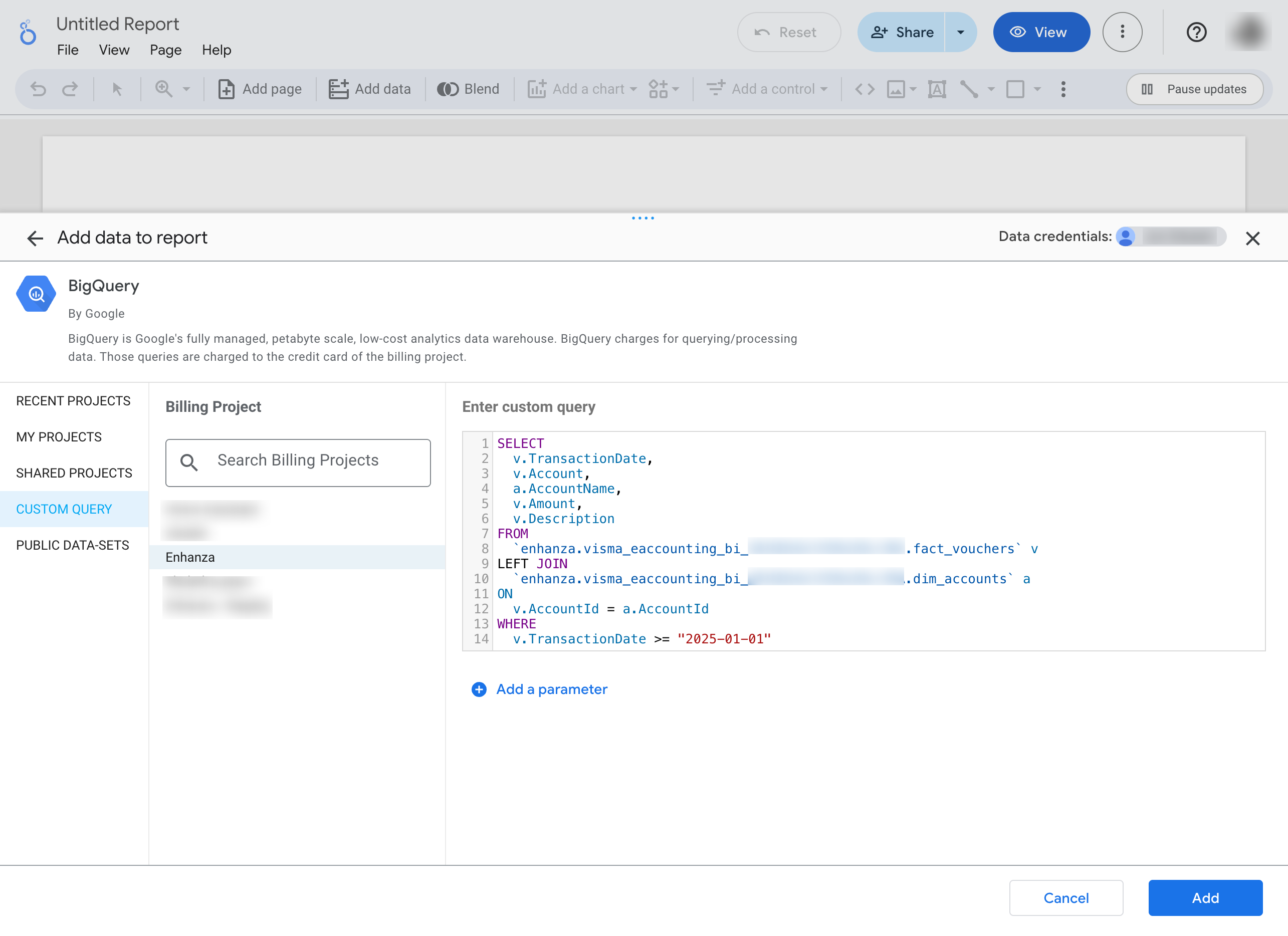 4. Click `Add` to create the data source.
Writing queries could be tricky. Enhanza's data analysts can help you out.
4. Click `Add` to create the data source.
Writing queries could be tricky. Enhanza's data analysts can help you out.