> ## Documentation Index
> Fetch the complete documentation index at: https://docs.enhanza.com/llms.txt
> Use this file to discover all available pages before exploring further.
# Microsoft Power BI
> This guide will help you connect Power BI to Fortnox and other data sources.
Before you begin, [create a workspace](https://app.enhanza.com/register) and complete the onboarding.
## Fortnox PBI templates
1. Get started easily with one of the templates that Enhanza has prepared for you:
* [Enhanza template](https://drive.google.com/uc?id=1oDs9RbUQAmNME6ed91_4aEnP_gV5PZjx\&export=download) with only dataset (no visual)
* [Rehngruppen template](https://drive.google.com/uc?export=download\&id=1vbt2JzrnK8sQpKs_CHHnpgVYWWDZ3dpB) with income and balance sheet
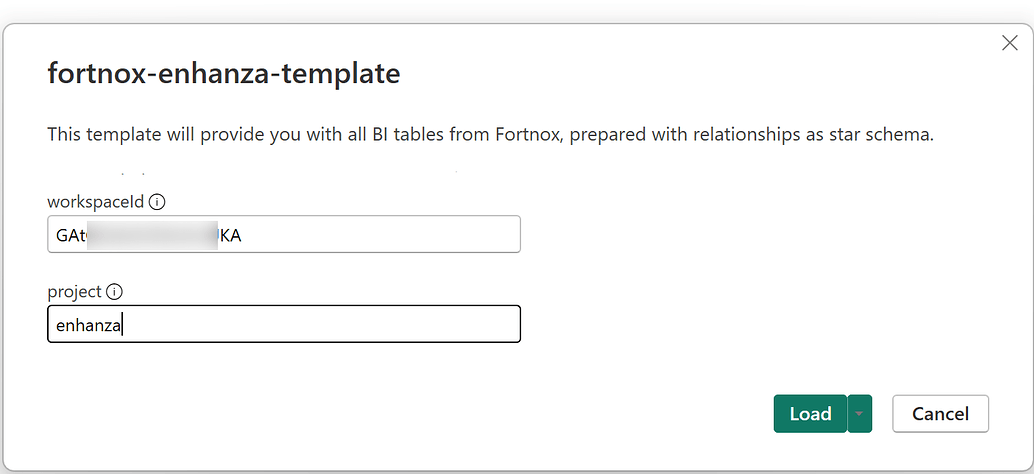
2. When asked for, add your unique [workspaceId](https://app.enhanza.com/settings/workspace). Set project = `enhanza`
 3. In the next dialogue box, select "*Service Account Login*":
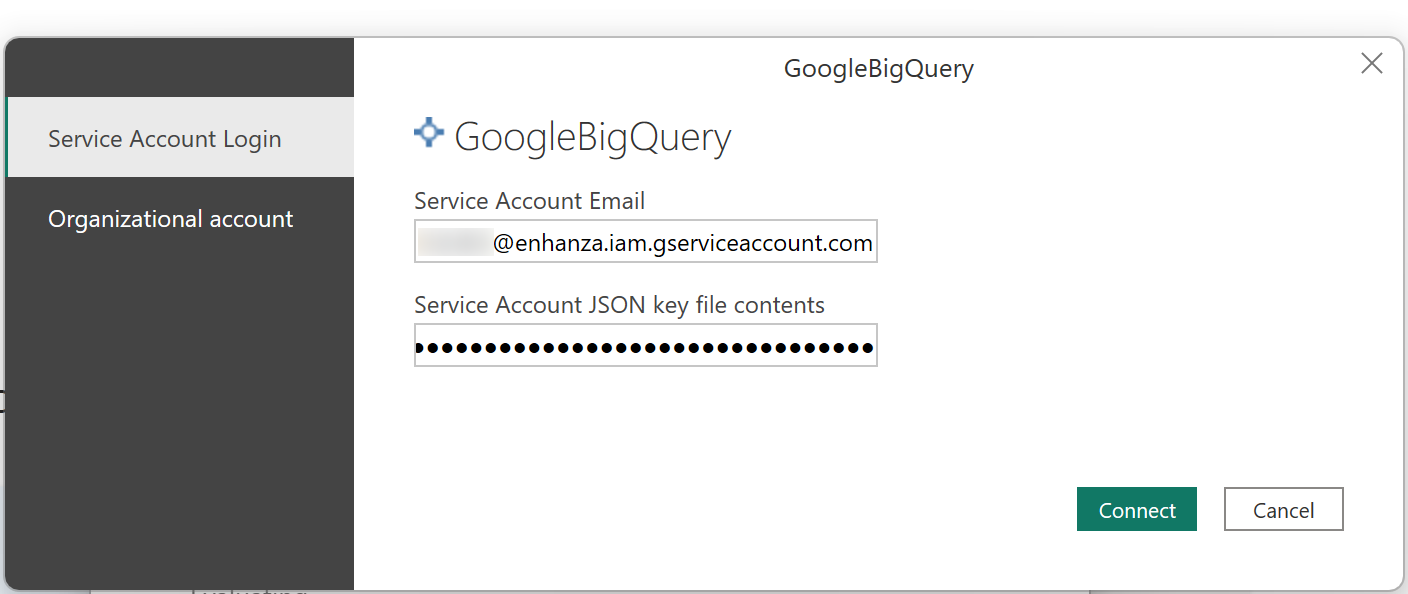
* Submit your unique Enhanza [Service Account Email](https://app.enhanza.com/settings/workspace/data-access) and
* paste the whole(!) content from a downloaded JSON key file.
3. In the next dialogue box, select "*Service Account Login*":
* Submit your unique Enhanza [Service Account Email](https://app.enhanza.com/settings/workspace/data-access) and
* paste the whole(!) content from a downloaded JSON key file.
 4. Click `Connect`
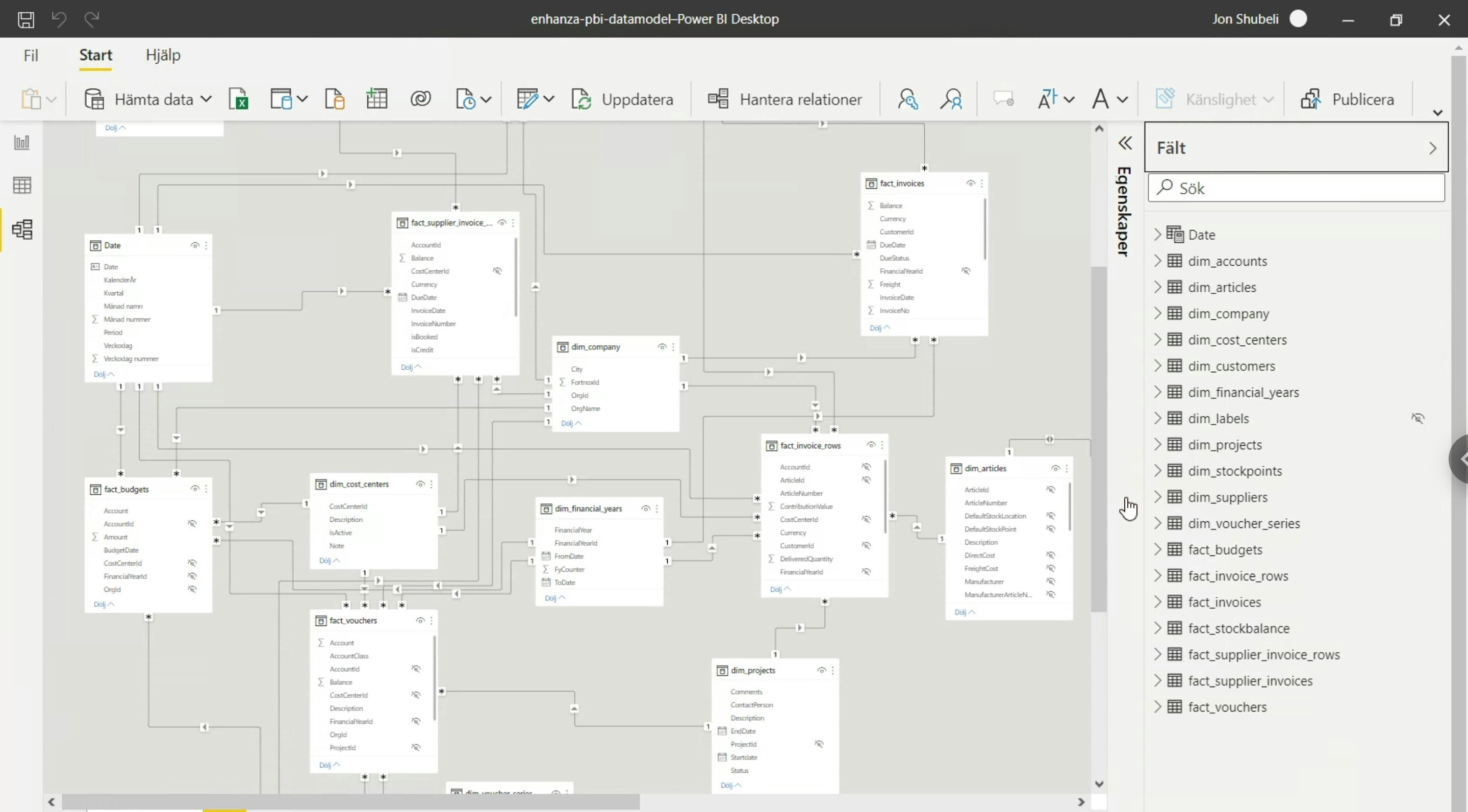
You now have a prepared Power BI dataset with a fully prepared semantic layer for your Fortnox data.
4. Click `Connect`
You now have a prepared Power BI dataset with a fully prepared semantic layer for your Fortnox data.
 ## Non-Fortnox data source
Please reach out to [support@enhanza.com](mailto:support@enhanza.com) for help with connecting from Microsoft Power BI to other data sources than Fortnox.
## FAQ
### Import or Direct Query?
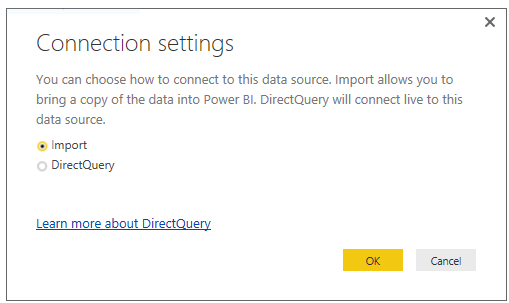
Select **Import** and *not* Direct Query when asked, for super fast queries and filtering.
## Non-Fortnox data source
Please reach out to [support@enhanza.com](mailto:support@enhanza.com) for help with connecting from Microsoft Power BI to other data sources than Fortnox.
## FAQ
### Import or Direct Query?
Select **Import** and *not* Direct Query when asked, for super fast queries and filtering.
 ### Can I edit the table relationships?
Yes, feel fee to modify and clean up as per your need. You can always add back tables via `Get data` > `Bigquery`.
## Troubleshooting
### General
* Make sure that you have followed the guide above.
* Double check all details are added, like `workspaceId` and service account.
* Make sure the [key](https://app.enhanza.com/settings/workspace/data-access) you're using is valid.
* Remember to always include the whole(!) content of the key *json* file.
Enhanza support covers an initially established connection betweeen Power BI and your data. It does not include support for how to use Power BI itself.
### I get error of missing data?
This is most likely cause by the initial sync bewteen Enhanza and the data source hasn't been completed. Monitor your [data source in Enhanza](https://app.enhanza.com/data-sources) and try again once the initial sync is completed.
### Missing fields?
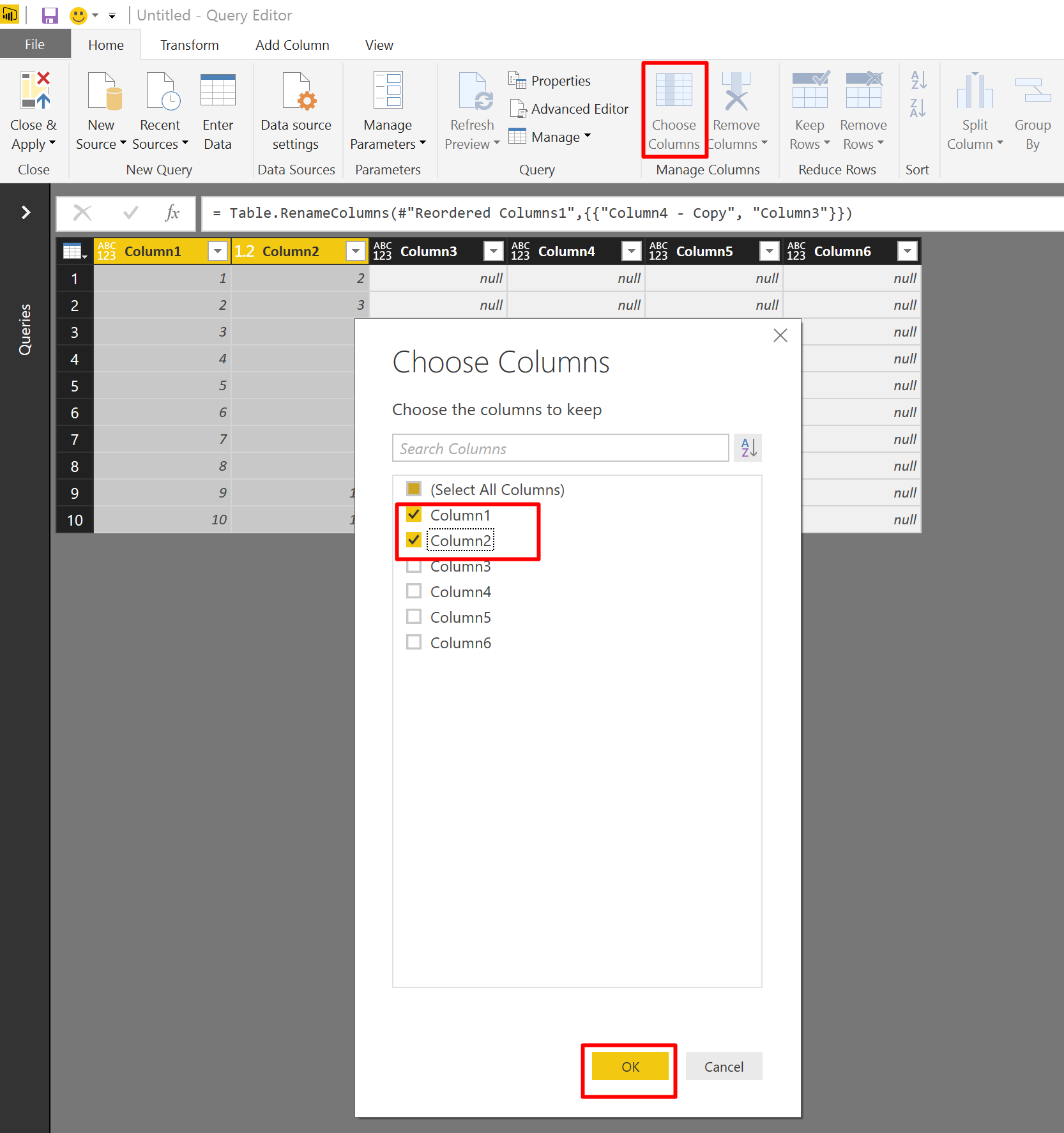
Go to the Query Editor > Choose Columns.
### Can I edit the table relationships?
Yes, feel fee to modify and clean up as per your need. You can always add back tables via `Get data` > `Bigquery`.
## Troubleshooting
### General
* Make sure that you have followed the guide above.
* Double check all details are added, like `workspaceId` and service account.
* Make sure the [key](https://app.enhanza.com/settings/workspace/data-access) you're using is valid.
* Remember to always include the whole(!) content of the key *json* file.
Enhanza support covers an initially established connection betweeen Power BI and your data. It does not include support for how to use Power BI itself.
### I get error of missing data?
This is most likely cause by the initial sync bewteen Enhanza and the data source hasn't been completed. Monitor your [data source in Enhanza](https://app.enhanza.com/data-sources) and try again once the initial sync is completed.
### Missing fields?
Go to the Query Editor > Choose Columns.
 ### Exception from HRESULT: 0x80040E4E
* This error rarely comes alone - scroll through the list of the tables you tried to refresh to see any other error types.
* Make sure you've updated to the latest version of [Microsoft Power BI](https://www.microsoft.com/en-us/download/details.aspx?id=58494).
* Clear PowerBI cache:\
Go to `File` > `Options and settings` > `Options` > `Global - Data Load` > `Data Cache Management Options` . Press `Clear Cache`
### Could not authenticate with the credentials provided
* Make sure you use the correct [service account](https://app.enhanza.com/settings/workspace/data-access) and the full content from an active key.
* If the key was created outside of Enhanza, make sure to clean it from spaces and line breaks. Power BI don't like them.
* Clear existing PowerBI Data Credentials in the current file and authenticate again using Service Account Login.
* Go to `File` > `Options and settings` > `Data source settings`
* Selec `Data sources in current file`-
* Open drop down `Clear Permissions` and select `Clear All Permissions`T
* In the same window, go to `Edit Permissions…` > `Edit…` (under Credentialis)
* Select `Service Account Login`
### Storage API Error: DNS resolution failed
This error indicates that Power BI can't connect to Google. Most of the time it is fixed by simply reloading PowerBI and trying again.
### Exception from HRESULT: 0x80040E4E
* This error rarely comes alone - scroll through the list of the tables you tried to refresh to see any other error types.
* Make sure you've updated to the latest version of [Microsoft Power BI](https://www.microsoft.com/en-us/download/details.aspx?id=58494).
* Clear PowerBI cache:\
Go to `File` > `Options and settings` > `Options` > `Global - Data Load` > `Data Cache Management Options` . Press `Clear Cache`
### Could not authenticate with the credentials provided
* Make sure you use the correct [service account](https://app.enhanza.com/settings/workspace/data-access) and the full content from an active key.
* If the key was created outside of Enhanza, make sure to clean it from spaces and line breaks. Power BI don't like them.
* Clear existing PowerBI Data Credentials in the current file and authenticate again using Service Account Login.
* Go to `File` > `Options and settings` > `Data source settings`
* Selec `Data sources in current file`-
* Open drop down `Clear Permissions` and select `Clear All Permissions`T
* In the same window, go to `Edit Permissions…` > `Edit…` (under Credentialis)
* Select `Service Account Login`
### Storage API Error: DNS resolution failed
This error indicates that Power BI can't connect to Google. Most of the time it is fixed by simply reloading PowerBI and trying again.